# Tools
The screenshot uses the WebUI demo with sample data; see the screenshot source note.
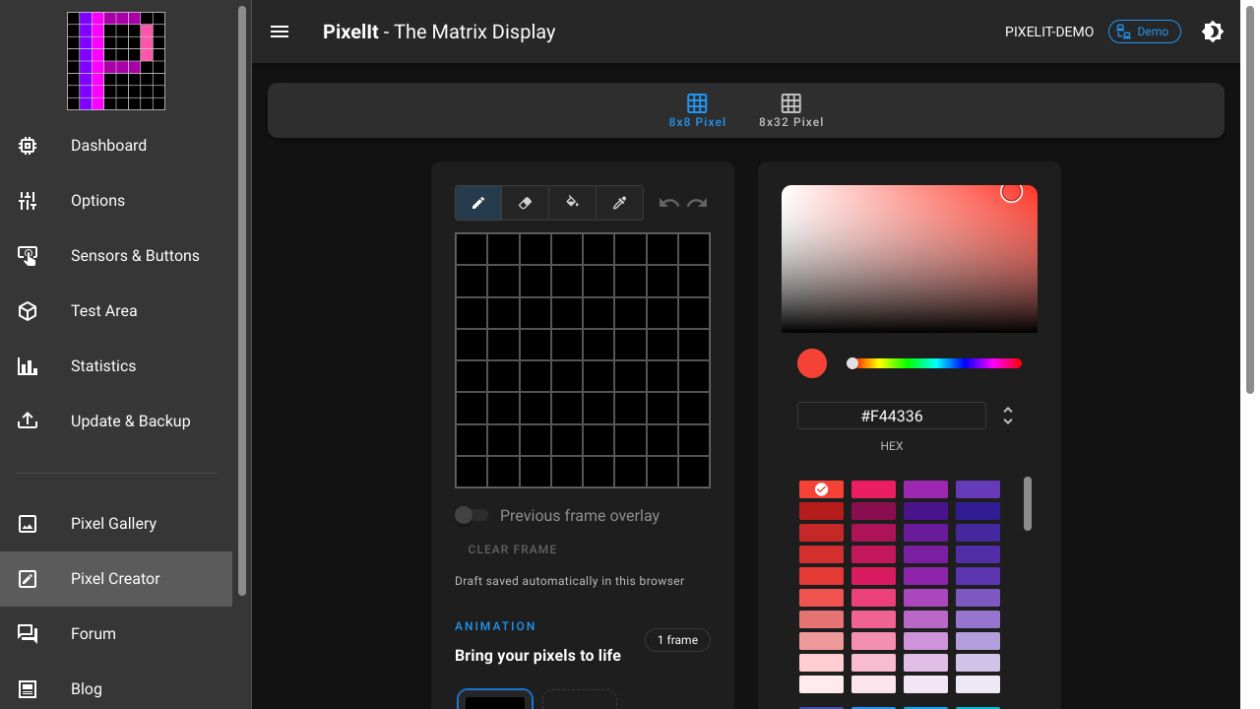
# Pixel Creator
Use the Pixel Creator (opens new window) to draw pixel art and publish it to the shared Pixel Gallery. Choose an 8×8 canvas for firmware animations or a 32×8 canvas for static full-screen art. The firmware animation limits still apply; see Bitmap Animation.
PixelIt 2.6.0 adds an 8×8 animation editor with frame reordering, adjustable preview timing, onion skin and playback controls. Drawing tools, undo/redo and bitmap input validation help you edit images. Separate local drafts are recovered for both canvas sizes.
# Pixel Gallery
Browse shared pixel art in the Pixel Gallery (opens new window). The gallery and ID lookups require access to the external bitmap service. Firmware screen commands use RGB565 arrays; integrations resolve gallery IDs before sending those arrays to the device.
Use Pixel Gallery IDs in the Bitmap Node, Bitmap Animation Node or ioBroker adapter.
The gallery loads more entries as you scroll and reuses loaded data when reopened. Animations pause outside the visible area or when the browser tab is hidden.
If loading fails, check access to the gallery service and retry. A gallery-service failure does not prevent local text screens or inline bitmap arrays from working.